
What’s New in Kustomer - October 2026
Kustomer’s Product Releases
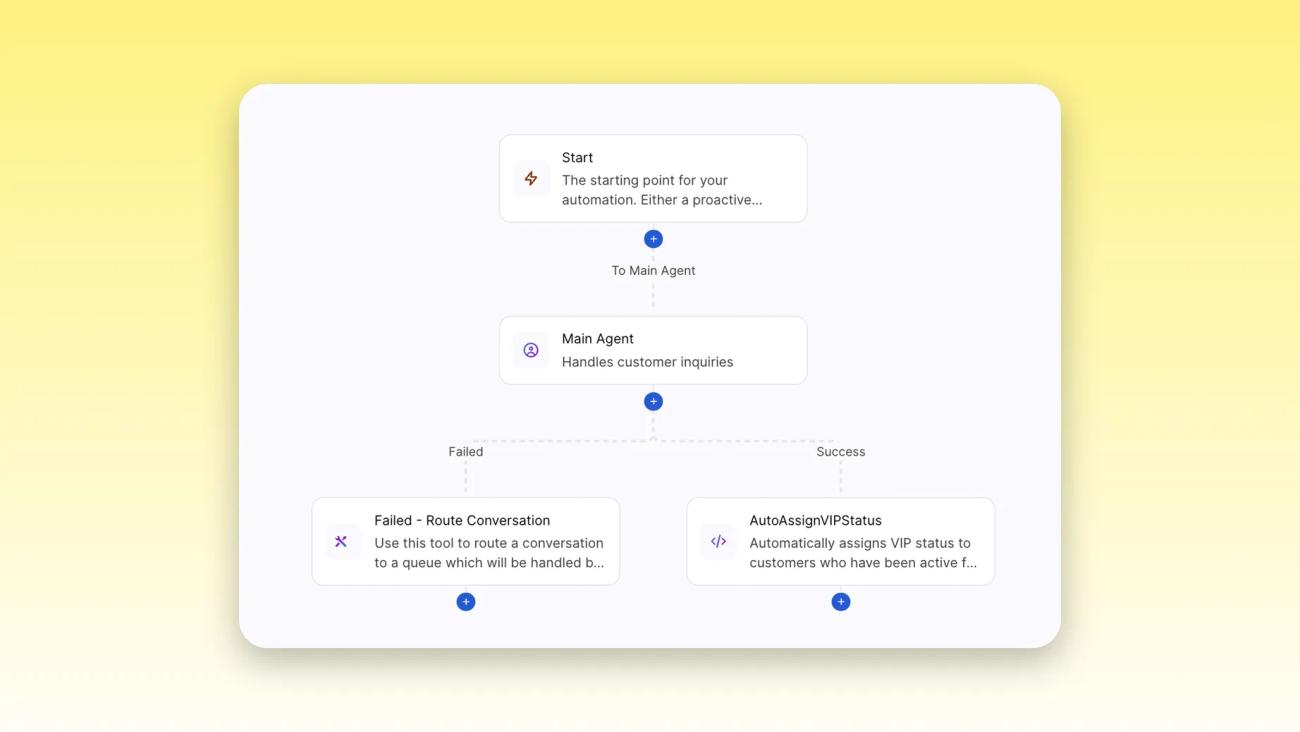
Kustomer’s October releases are about putting AI agents to work and measuring the results: Conversation Intelligence and AI QA turn every conversation into structured data and a quality score, Architect now helps plan multi-agent automations, and single-agent automations let you decide what happens when a conversation ends. Slack picks up selectable trigger emojis and Concierge support, and SLA policies can now require a human reply.
Keep reading to learn what shipped, why it matters for your team, and how to put it to work.
Conversation Intelligence & Quality
2 releases1. Introducing Conversation Intelligence
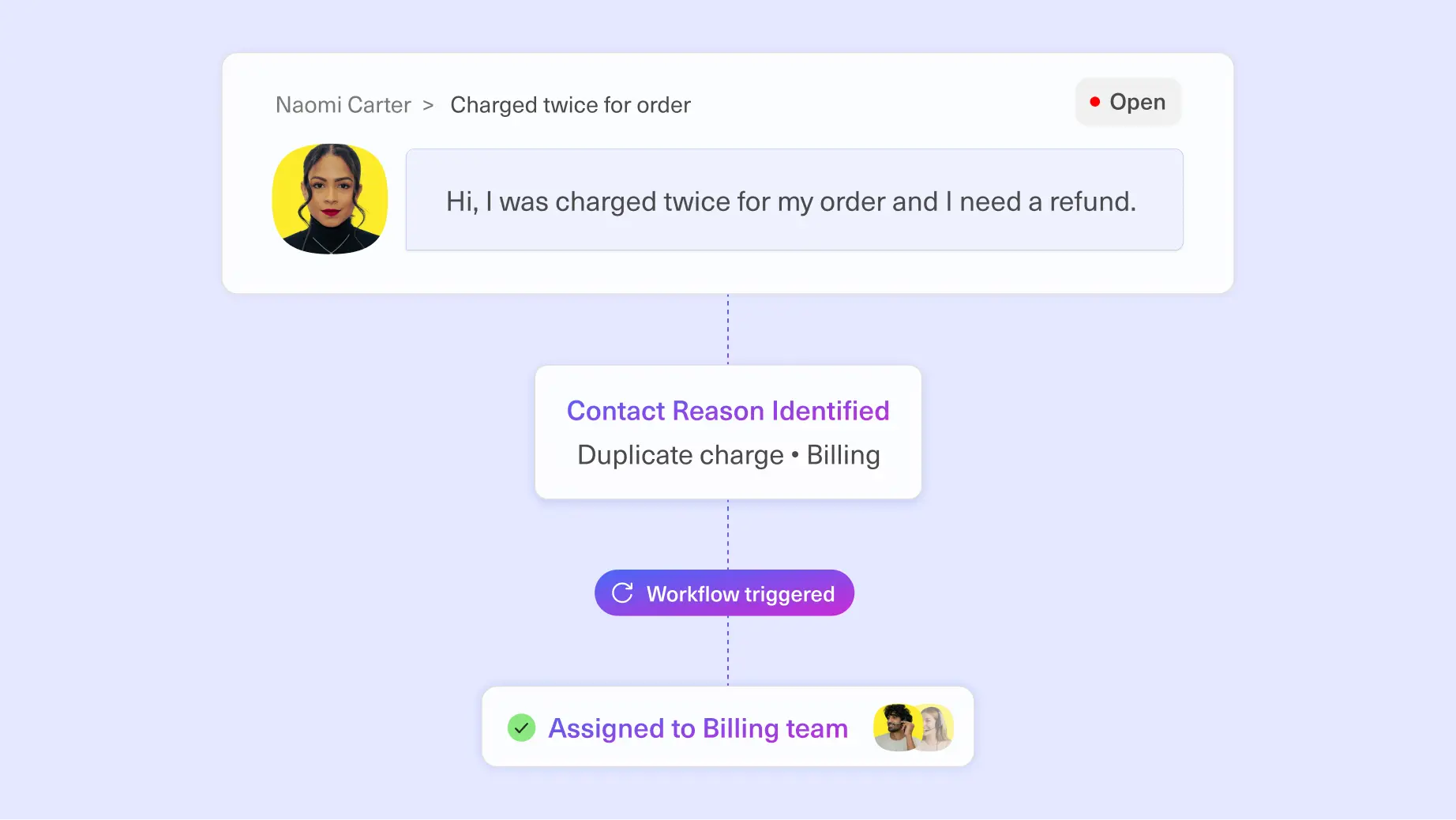
Conversation Intelligence uses AI to turn the unstructured information in your customer conversations into structured data. Classifiers place conversations into categories you define, scores evaluate interactions against weighted criteria on a 0 to 100 scale with a rationale for each result, and extractors capture details such as order numbers, product names, or a summary of the customer’s issue.
Results are saved in attributes, so you can use them to route conversations, trigger workflows, and report on why customers contact you. Conversation Intelligence is available now as a paid add-on for existing customers. Learn more —>
2. Introducing AI QA
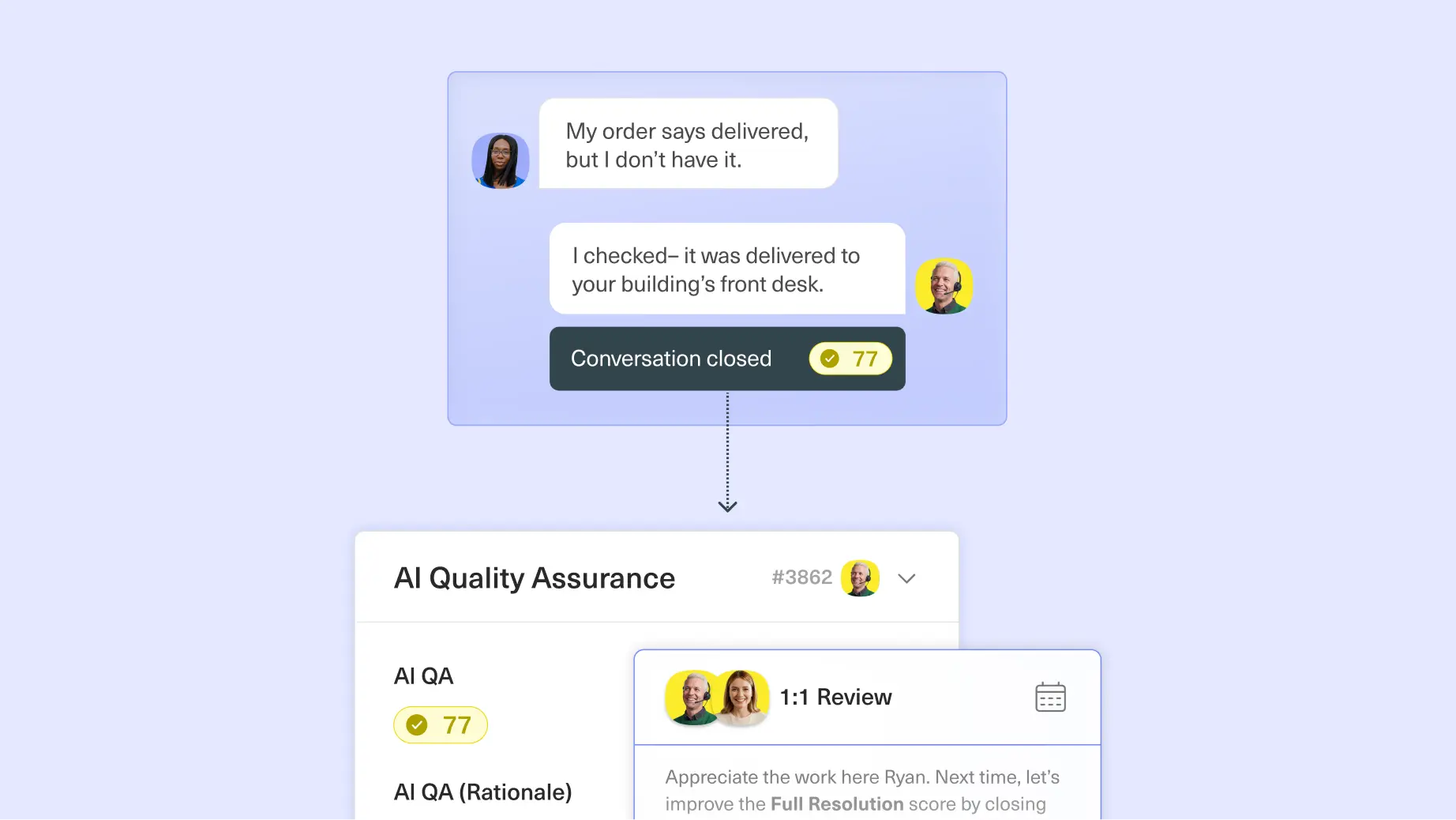
AI QA scores every AI agent conversation and every human rep conversation against a weighted scorecard you define, with the AI’s reasoning shown next to each score.
Why it matters.
Some teams review as few as one or two conversations per agent per week, and that sample still feeds performance reviews. AI QA scores all of them. Because a score is a normal attribute on the conversation, it flows into reporting and Data Explorer, where you can filter for the lowest-scoring conversations, human or AI, and go straight to them. Learn more —>
How to use it.
A ready-made AI QA field comes preconfigured and turns on in a single click. Edit it to match how your team evaluates quality, write your criteria in plain language, and choose when it runs. Every closed conversation is then scored automatically, and you can override a score by hand without it being overwritten the next time the field runs.
AI Agents & Automation
5 releases3. Architect Now Works in Multi-Agent Mode
Architect can now help you plan and maintain automations in Multi-Agent Mode. Describe the specialist agents and routing you want, and Architect returns a read-only team-structure preview you can use as a blueprint on the Build canvas.
Why it matters.
Planning a team of specialist agents means deciding who handles what and how conversations move between them. Architect gives you a starting structure to react to, and it can update an agent’s procedures, knowledge sources, custom guidance, tone, and greetings when you ask. You approve each change with Apply, so nothing shifts without you. Learn more —>
How to use it.
Open Architect in Multi-Agent Mode and describe the agents and routing you want. Architect recommends structure but doesn’t add agents or paths for you, so build those on the Build canvas using the preview as a blueprint. To change an existing agent, ask Architect and click Apply on each change you want to keep.
4. Choose What Your AI Agent Does When a Conversation Ends
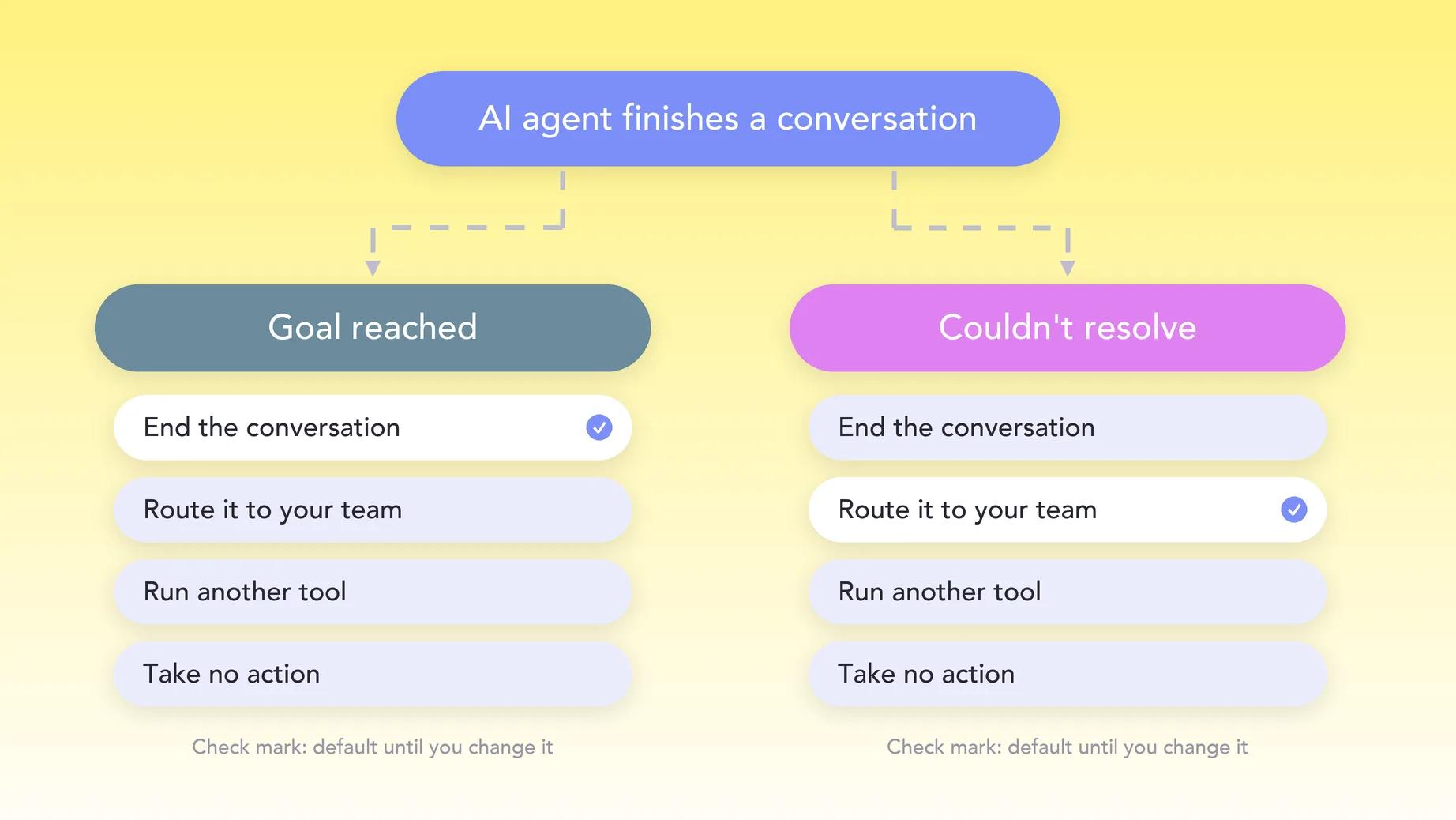
In single-agent mode, you can now pick an action for Goal reached conversations and another for Couldn’t resolve conversations. Each outcome can end the conversation, route it to your team, run another tool from your organization, or take no action.
Why it matters.
Until now, single-agent AI Automations ended the conversations they resolved and routed the ones they couldn’t. Now the ending can match your process, such as sending a follow-up message after a resolution, without leaving single-agent mode. Each outcome is powered by the validation agent. Learn more —>
How to use it.
Open the Outcomes section on the Build page and select an action for each outcome. Until you change them, Goal reached conversations are ended and Couldn’t resolve conversations are routed.
5. A Refreshed Graph View for Multi-Agent Mode
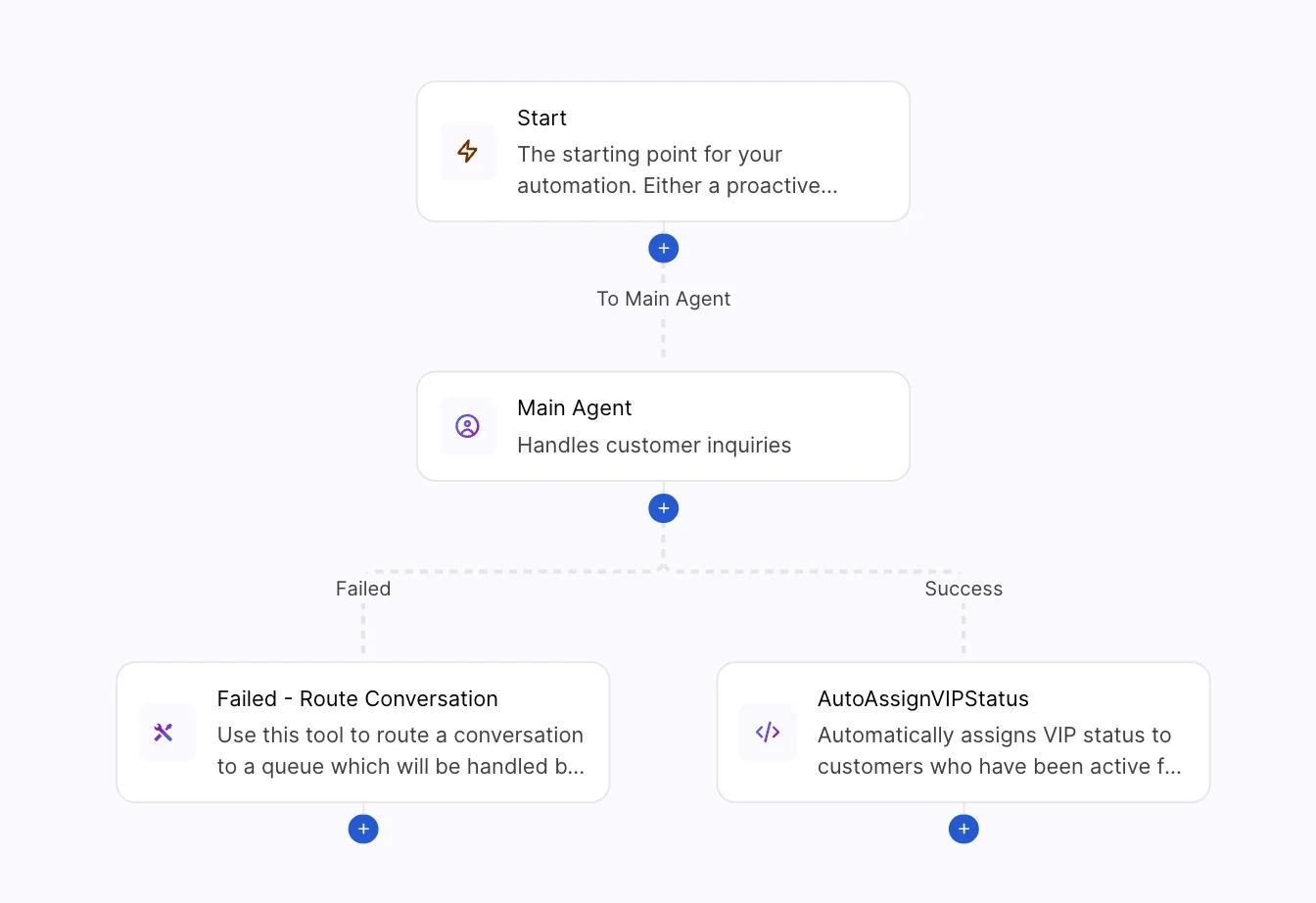
Multi-agent mode now has a refreshed graph view that is easier to scan and navigate, with a cleaner picture of how agents and tools connect inside an automation. It replaces the previous graph view after a beta period and customer feedback.
Why it matters.
As an automation adds agents, a graph you can read at a glance saves time when you build and when you troubleshoot. The new view also performs better.
How to use it.
Nothing to do. The new graph is already in place, and existing multi-agent configurations need no changes.
6. Filter Your AI Agents’ Conversations in Observability
You can now filter the conversation list on the Analyze page for your AI agents. Search by conversation text, then narrow the list by Customer, Errors & cancellations, Tools used, or Channel. A new Status column marks conversations that contain an error or a cancelled run.
Why it matters.
Finding the conversations that need attention used to mean scrolling the full list. Filters and the Status column take you straight to the ones with errors or cancelled runs, so you can fix an agent’s behavior faster. Learn more —>
How to use it.
On the Analyze page, use the search bar, then select + Filter. Each filter appears as a pill above the table. Click a pill to edit it, or click its close icon to remove it. With more than one filter, the list shows only conversations that match all of them.
7. Keep Your Concierge Model or Move to the Latest
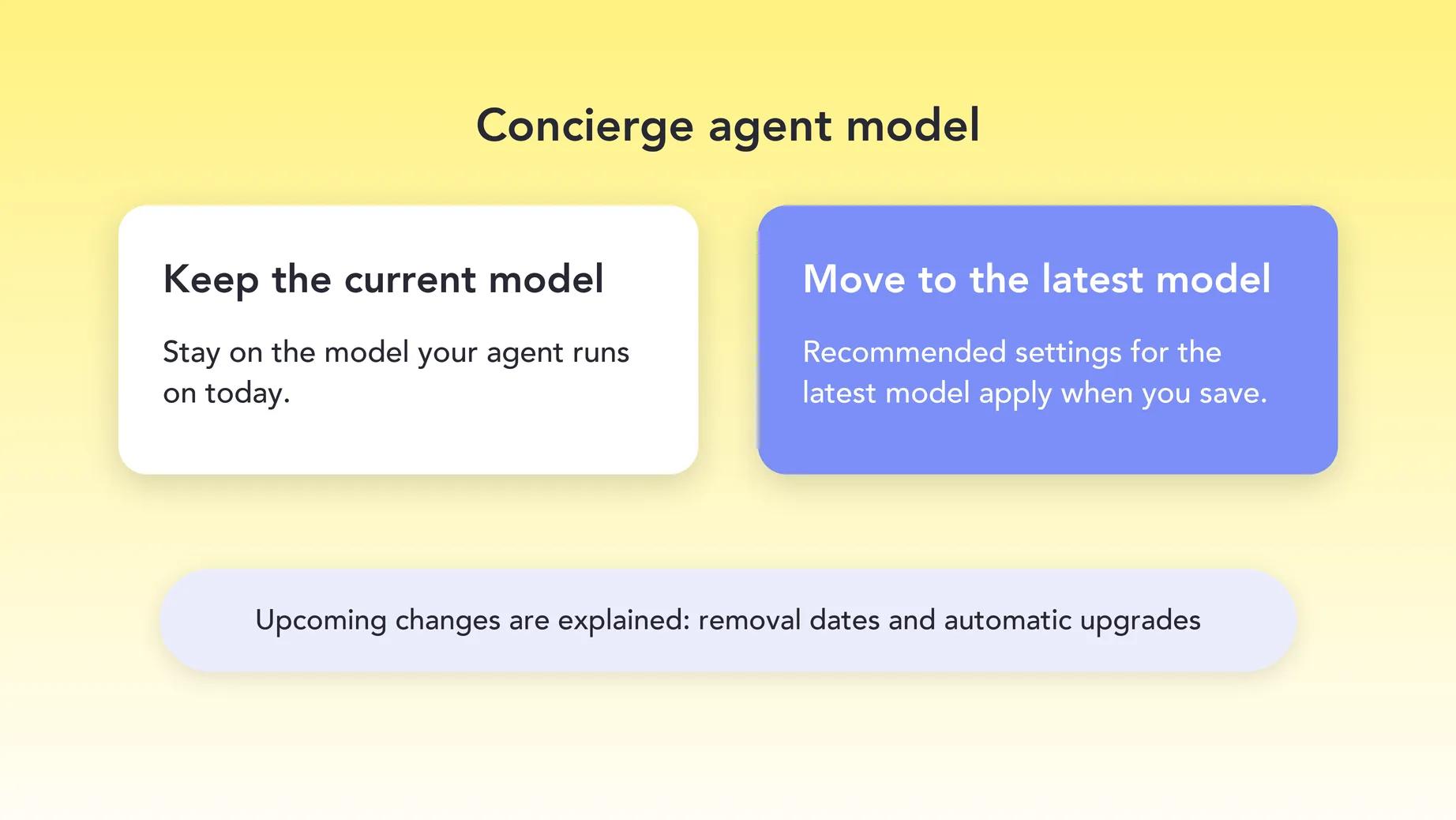
The Concierge agent form now lets you keep the current model or move to the recommended latest model, instead of choosing from a full catalog. It also explains upcoming model changes, such as removal dates and automatic upgrades.
Why it matters.
Model changes are easier to plan when you can see what is changing and when. Choosing the latest model also applies its recommended settings when you save. Learn more —>
How to use it.
Edit a Concierge agent in automation settings and choose between the current model and the latest one.
Channels & Integrations
3 releases8. Slack as a Channel: Choose Your Trigger Emoji and Let Concierge Answer
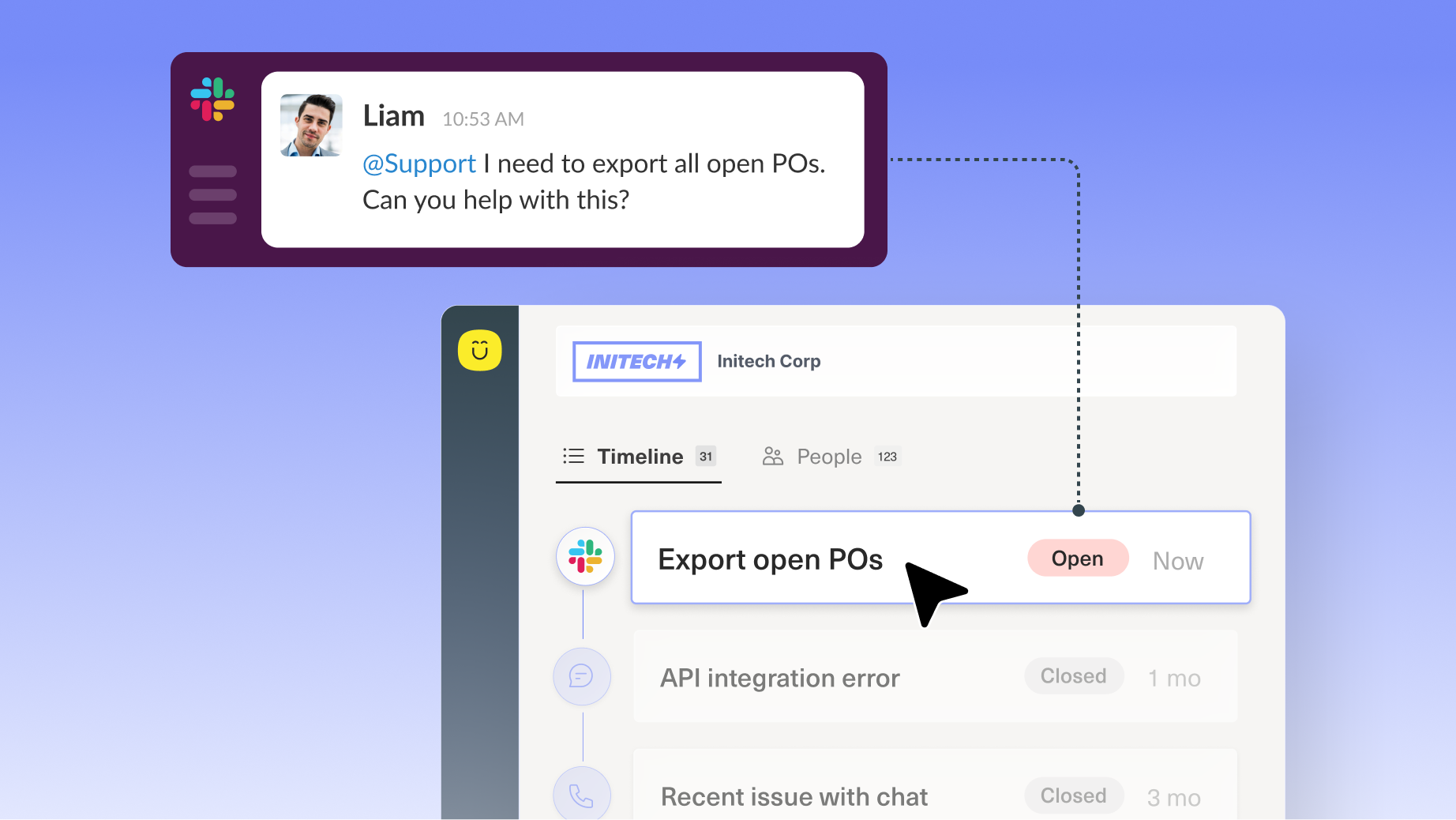
Admins can now choose the emoji reps use to start a Kustomer conversation from Slack, including custom emoji from your Slack workspace. Concierge can also work Slack conversations after a rep opens one with the trigger emoji or mentions Kustomer in the thread.
Why it matters.
B2B support that lives in shared Slack Connect channels lands on the customer timeline, with SLAs, reporting, and history on the Company. With Concierge in the thread, its replies post into Slack just like an agent’s. Learn more —>
How to use it.
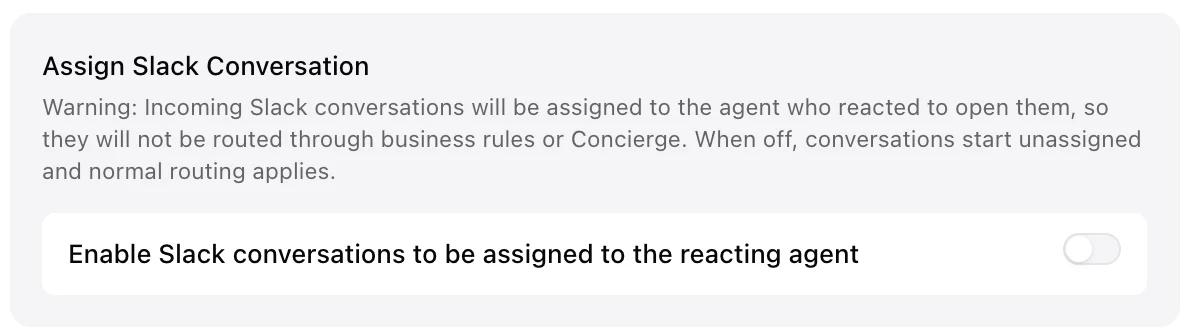
In Settings > Channels > Slack, enter one or more Slack emoji names. The default stays ✅. To have Concierge work a conversation, leave Assign Slack conversations to the reacting agent turned off and route the conversation to Concierge.
9. Assign Slack Conversations to the Agent Who Claimed Them
When someone reacts to a Slack message with ✅ to create a conversation, Kustomer can now assign it to the reacting agent by matching their Slack email to their Kustomer user email.
Why it matters.
Claimed requests land with the right person instead of staying unassigned or going to another agent’s queue. Learn more —>
How to use it.
This is an optional setting. Teams that don’t claim requests with reactions can leave it off.
10. Pick the Right From Address Before You Start an Email
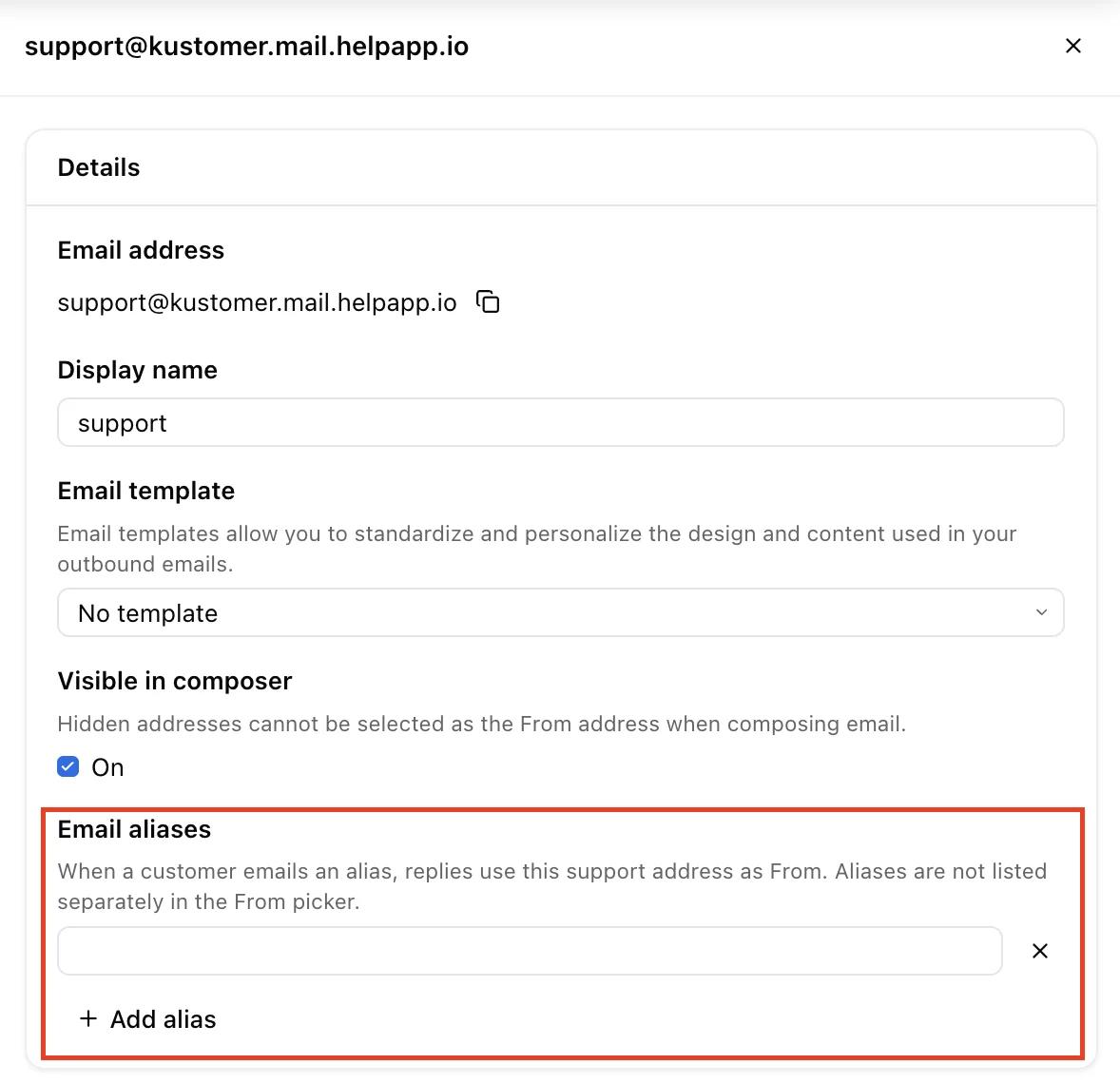
When you can send from more than one support address, Kustomer now asks you to choose the From address before it creates a new email conversation, so the customer receives the email from the right brand or team. It pre-selects the address you most recently used with that customer. Admins can also add email aliases to a support address.
Why it matters.
It is easy to start an email from the wrong address when a customer has more than one option, and the chooser puts that decision in front of you before the composer opens. Aliases link a receive-only address to a sendable support address, so when a customer emails an alias, Reply pre-selects the correct support address as From. Learn more —>
How to use it.
The chooser appears only when you can send from two or more support addresses. Pick a different address before you click Continue, or change it later in the composer. Admins add aliases in the support address settings, and nothing changes until aliases are added.
SLAs, Reporting & Billing
3 releases11. Count Only Human Replies Toward First Response Time
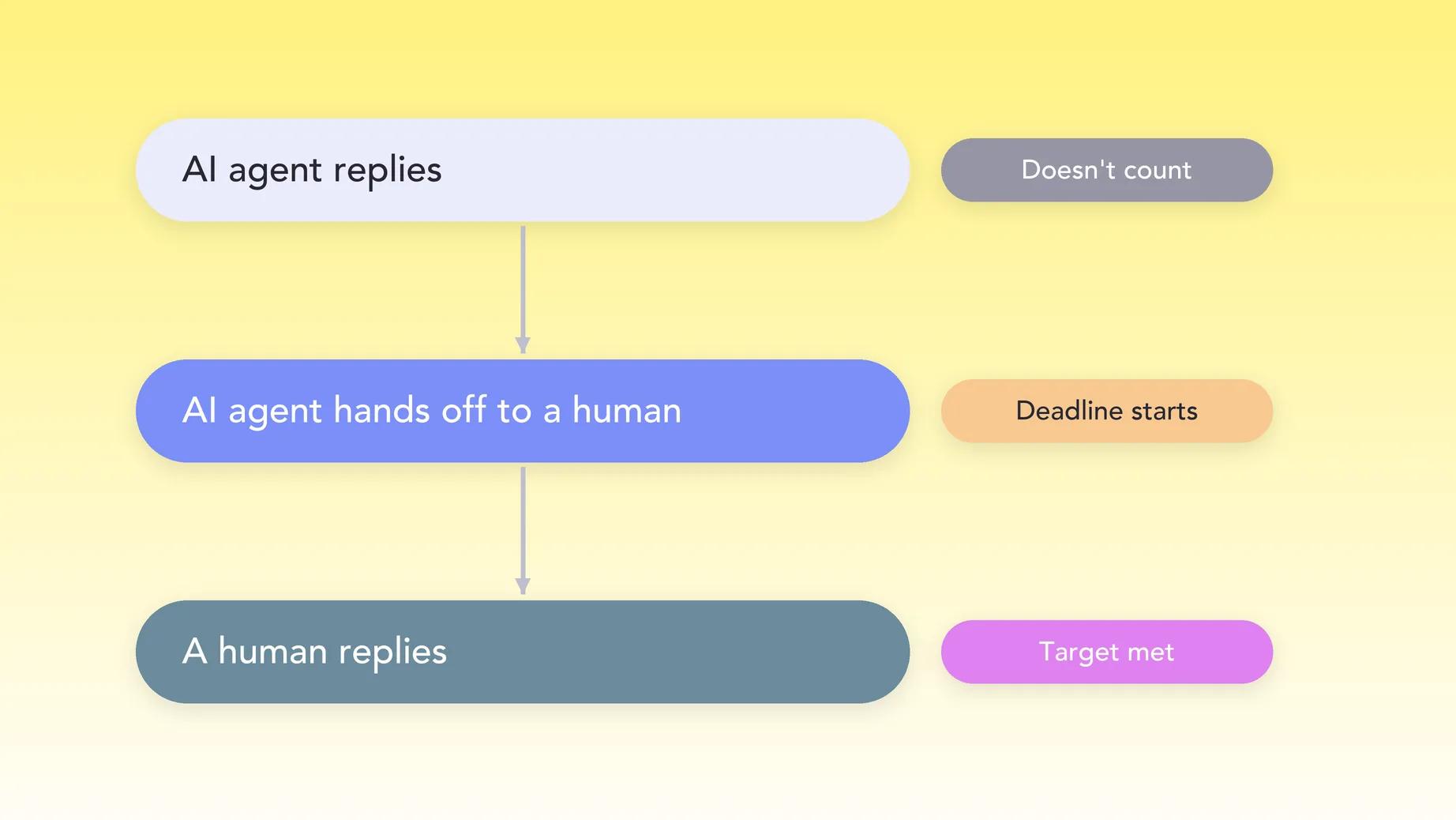
First Response Time on your SLA policies now has a Based on human interaction option. When it is on, an AI agent’s reply no longer counts as your first response.
Why it matters.
When an AI agent answers first, a policy can show as met even though no person has replied. With this option, the First Response Time deadline starts when the AI agent hands the conversation off to a human, and the first human reply satisfies it. Learn more —>
How to use it.
Edit an SLA policy in Settings and check Based on human interaction under First Response Time.
12. Next Reply Time: A Recurring SLA Metric
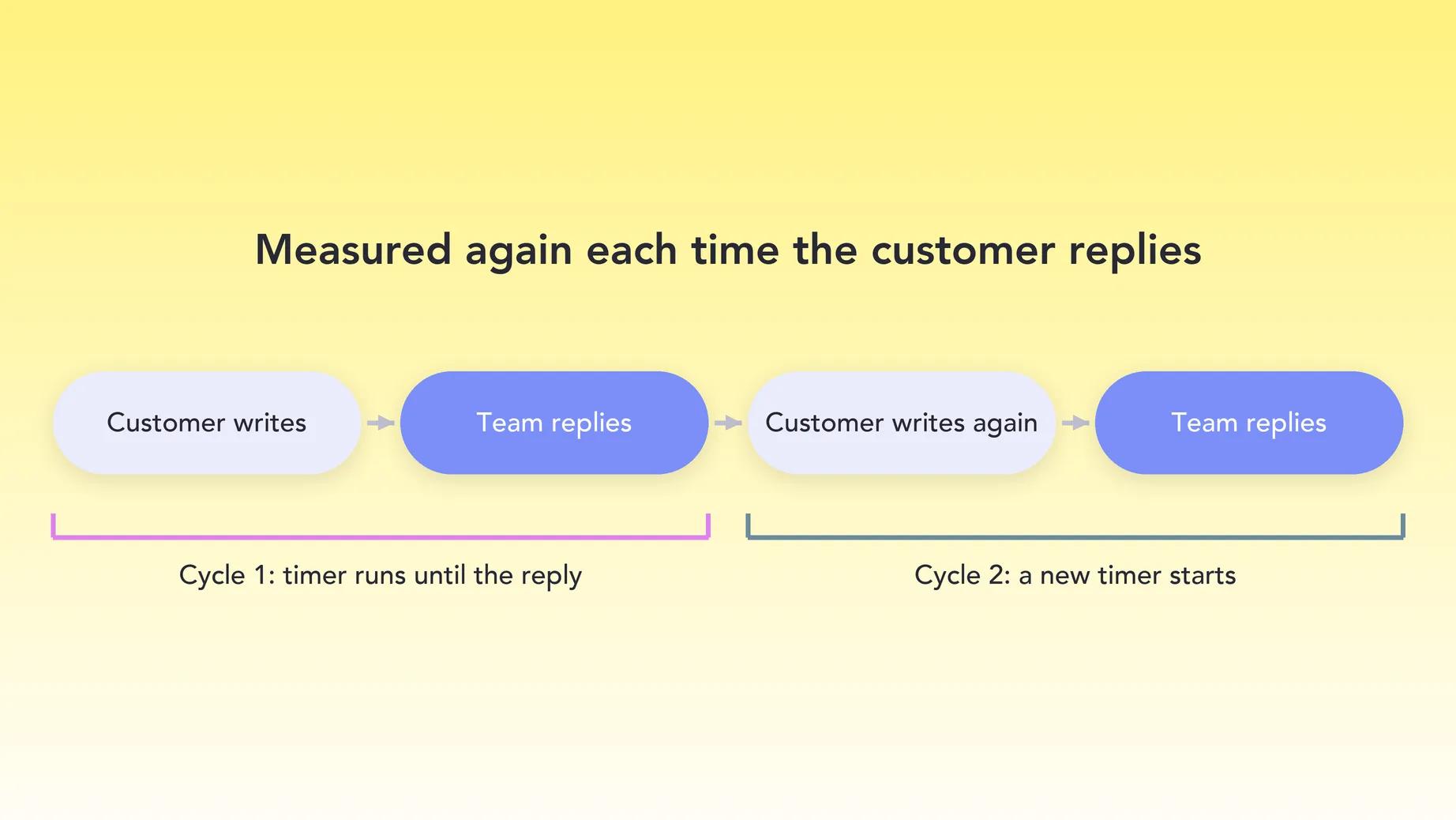
Next Reply Time is a new SLA metric that restarts every time the customer sends another message, so compliance reporting reflects how quickly your team answers the current conversation, not only its first message.
Why it matters.
First Response Time and Longest Unresponded Message each measure a conversation once. After either one breaches or is satisfied, a customer’s follow-up doesn’t start a new timer, so a conversation can look breached even when your team is replying promptly. Next Reply Time closes that gap, and it runs alongside the other metrics on the same policy. Learn more —>
How to use it.
Admins enable Next Reply Time on an SLA policy. By default, any successfully sent, customer-visible reply satisfies a cycle, including replies from AI, a bot, or an automation. You can base it on human interaction to count only human replies.
13. Usage Credits Now Show in Billing Hub
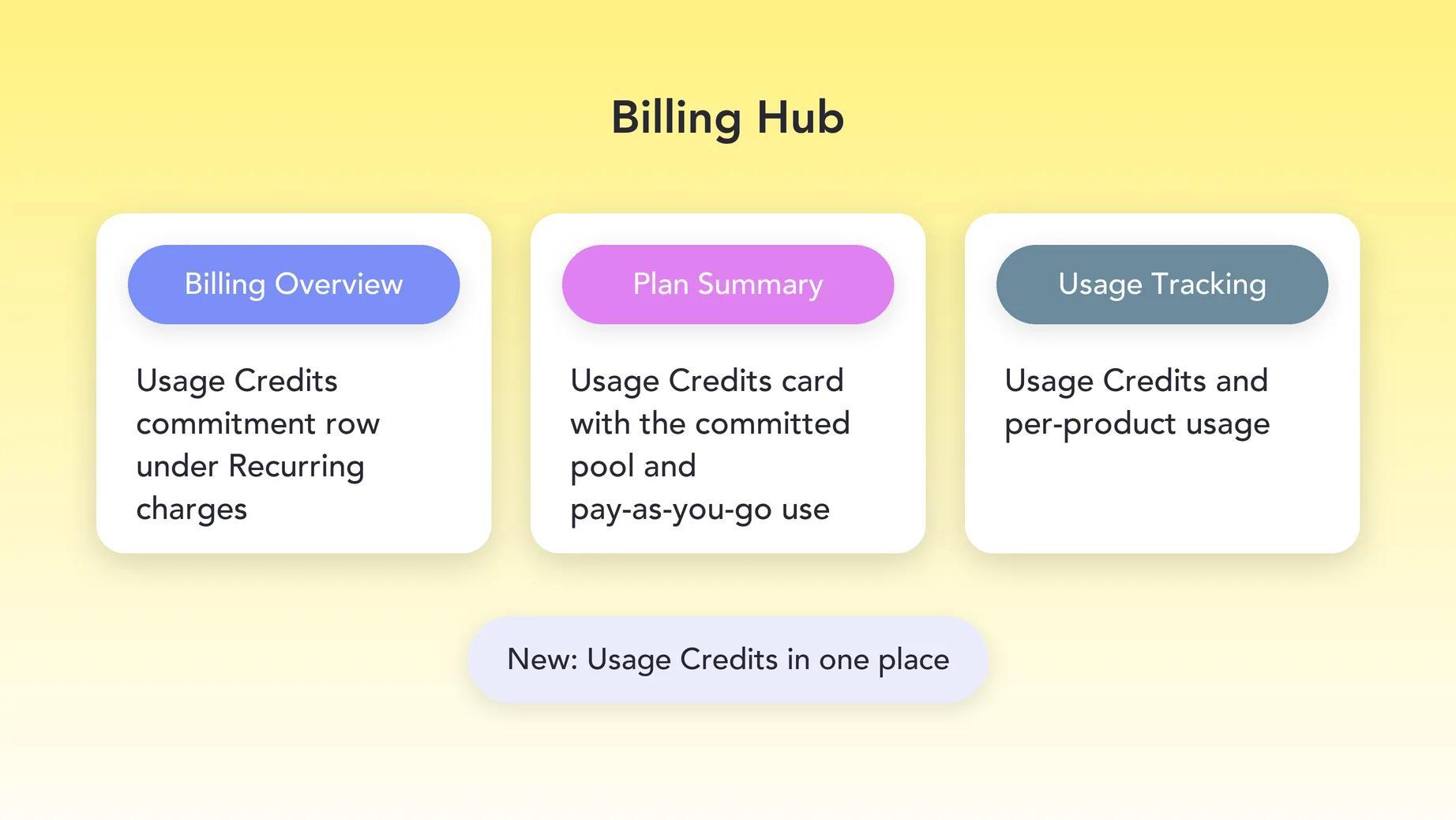
Billing Hub now shows how Usage Credits are committed, used, and billed in one place. Recurring charges include a Usage Credits commitment row, Usage-based charges and Usage tracking include Usage Credits and per-product usage, and Plan summary has a Usage Credits card with the committed pool and pay-as-you-go use.
Why it matters.
Billing admins had no single place to see how Usage Credits are committed, used, and billed. Learn more —>
How to use it.
Find it under Settings → Billing.
More in October
10 releases- A banner now tells you when Kustomer email sending is paused, or close to being paused, because of bounces or spam complaints, with a View Email Settings link. Kustomer-hosted support addresses also show Sending Paused or At Risk next to their setup status.
- Search results can now show record ids as their own column for conversations, customers, companies, and custom objects. Message search can add the customer id and conversation id, and search exports include the id.
- Bulk messaging from search results adds HTML template selection, email previews, Gmail sends-remaining warnings, and a “Ready to send?” confirmation step. Shortcuts keep their attachments.
- View email headers from the ... menu on any email message in the Classic timeline, with parsed headers, SPF, DKIM, and DMARC results, a routing-hop filter, and a one-click Copy headers button.
- Sound notifications for new messages can now repeat until you answer, set per channel, so important messages are harder to miss when you are working in a different tab.
- The shortcut picker now puts your most-used shortcuts at the top, and a duplicated shortcut is named “Copy of” plus the original name.
- Change History’s Copilot panel has five new quick actions: summarize the changes, flag what needs a closer look, find what changed when something broke, see who changed access or permissions, and see what was deleted or turned off. App setting changes now group under Apps.
- New Response notification emails now include the customer’s company in the subject, such as “New Response from Sally Maxwell from Edgecom,” when the customer has a named company.
- Company and customer timeline rows now show conversation tags and custom object badges. Customer rows also show a people icon with the customer count on conversations that include more than one customer.
- Connecting a Slack workspace that another Kustomer organization already uses is now rejected with a clear message on the Slack connection card, and the other organization’s connection stays active.