What’s New in Kustomer
Kustomer’s Product Releases
Kustomer’s latest releases are about precision and control: AI agents that search only the knowledge base content relevant to the conversation, admin-defined context variables that remove guesswork from tool calls, and a rebuilt Concierge report that shows exactly where automations resolve, escalate, or stall. On the integrations side, WhatsApp identity support keeps customer records intact through Meta's ID migration, and a new Billing Hub puts usage and plan data in your hands — no ticket required.
Keep reading to learn what shipped, why it matters for your team, and how to put it to work.
AI Agent Quality & Reliability
3 releases1. More Relevant AI Answers with Scoped Knowledge Base Search
AI agents can now search a scoped subset of your knowledge base — by category, brand, or tag — instead of the entire library. That means more relevant answers for businesses with content segmented by brand, region, or customer tier.
Why it matters.
AI agents search a more relevant subset of knowledge base articles, which can improve retrieval efficiency and reduce irrelevant results. This is especially helpful if your knowledge base spans multiple brands, locations, or customer tiers. Learn more —>
How to use it.
In the Kustomer AI Tools menu, add a Search KB tool and scope it using Brands, Tags, and/or Categories — pick specific categories or leave it open to search everything. Add the tool to your AI agent with search_input set as a reasoning attribute so it pulls search text from the conversation.
2. Context Variables Make AI Agent Tools More Reliable
Admins can now insert placeholders (like a customer ID) directly into a tool's configuration, and Kustomer automatically fills in the correct value at runtime — instead of relying on the AI to figure it out. The result: more consistent, predictable tool calls every time.
Why it matters.
When an AI agent’s tools require a specific customer ID, conversation ID, or account detail, relying on the AI to identify and pass the right value can introduce errors. Context variables eliminate that risk by letting admins add placeholders directly to a tool’s preset attributes. Kustomer then automatically resolves each placeholder to the correct value before the tool runs. Learn more —>
How to use it.
In a tool's preset attributes, insert a placeholder instead of leaving it to the AI to supply. Kustomer resolves it automatically before the tool runs.
3. Concierge Now Enforces Configuration Size Limits
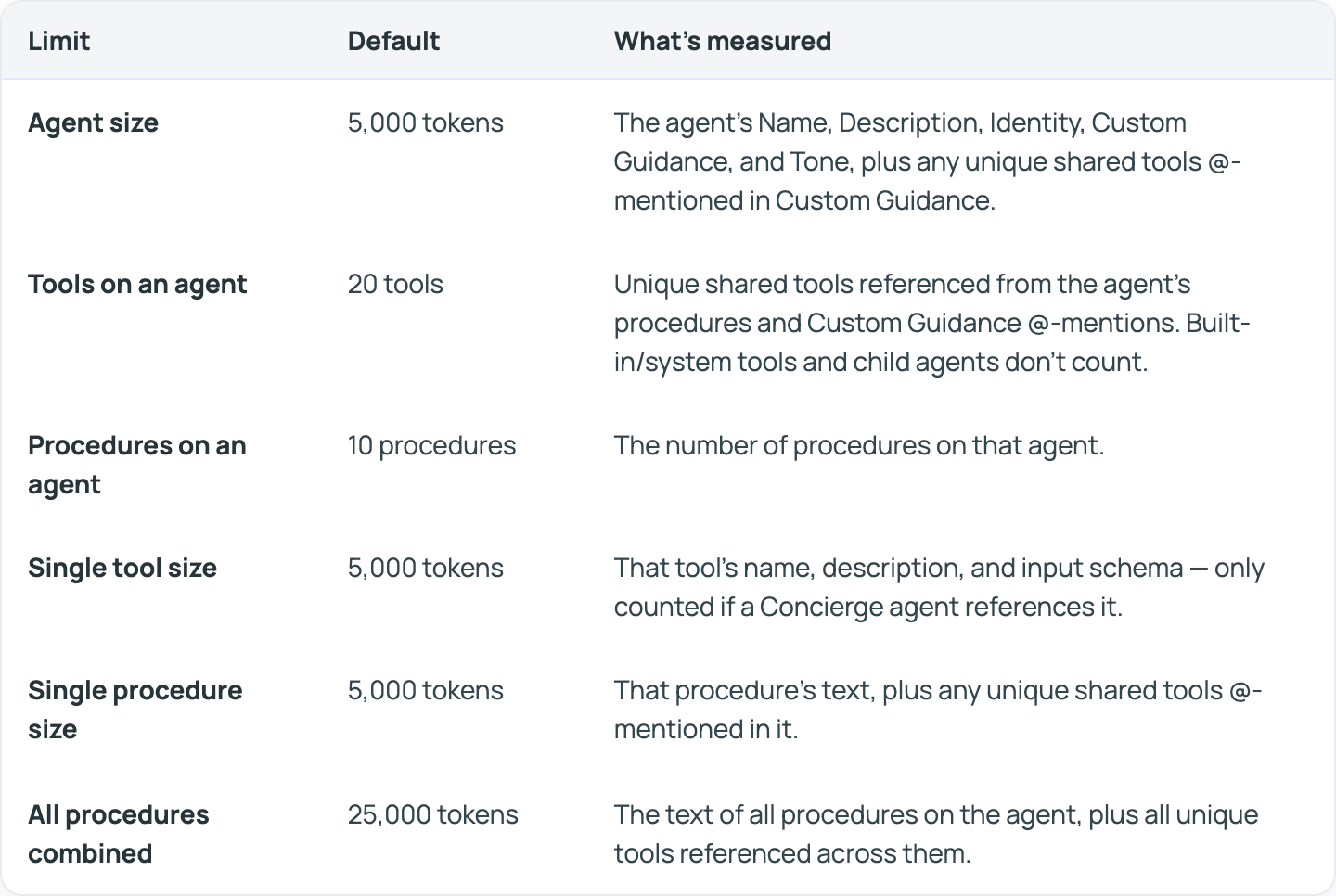
Keep your Concierge agents fast, focused, and reliable as they grow. New size guardrails on agents, tools, and procedures help prevent overloaded configurations from slowing down or confusing your AI, with clear guidance if you ever need to trim something back.
Why it matters.
As Concierge agents grow more complex, oversized configurations can hurt response consistency and speed. Concierge now checks configuration size at save time and flags exactly what needs to shrink, keeping every agent fast and reliable as it scales. Learn more —>
How to use it.
Action is required only when an agent exceeds one or more limits. Admins must reduce the affected configuration before they can save or deploy the agent. Customers with large Concierge configurations may need to shorten guidance, remove unnecessary tools, consolidate procedures, or move distinct intents into child agents.
Reporting & Performance Visibility
2 releases4. The New & Improved Concierge Report
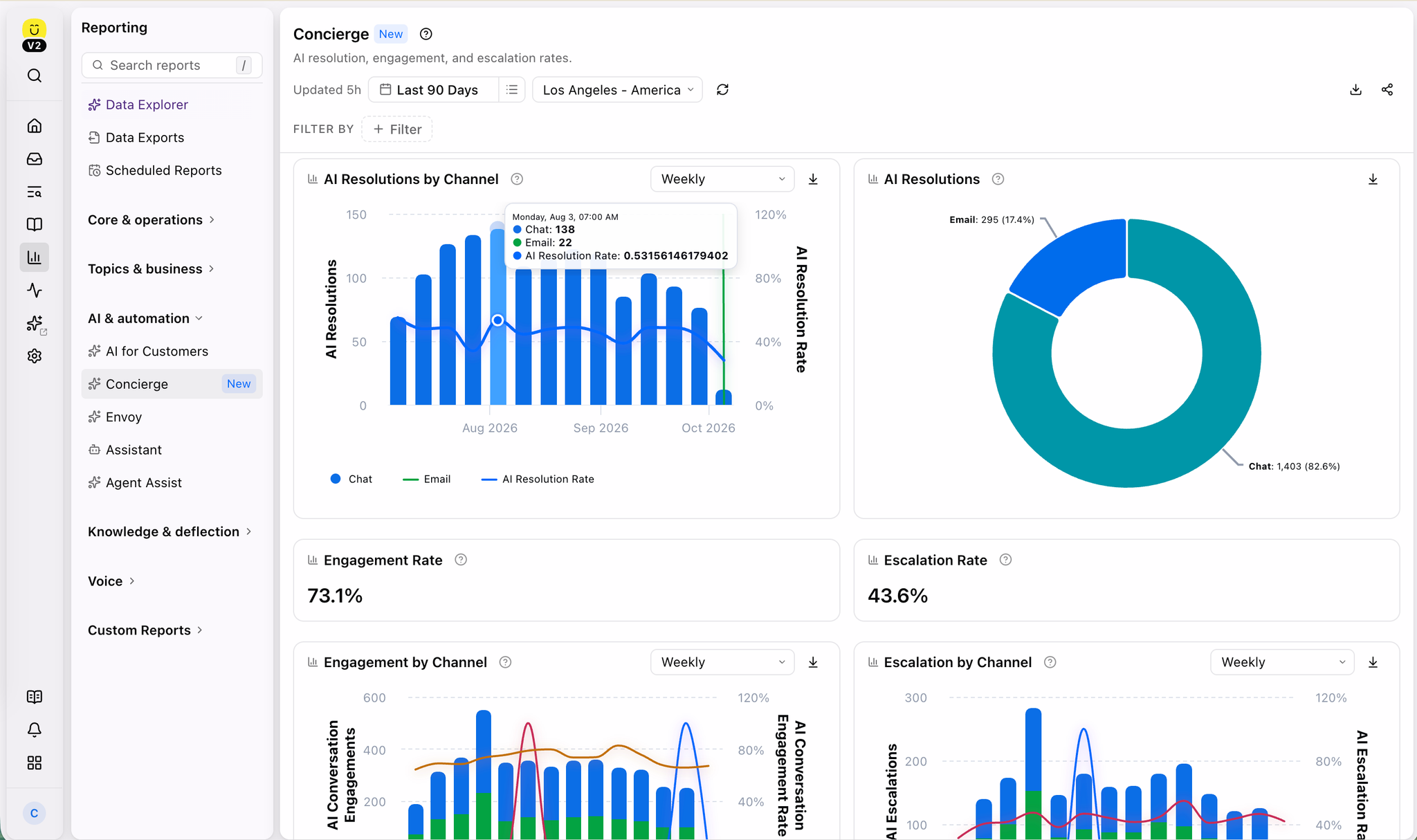
The latest version of this report allows you to see exactly how well your Concierge automations are performing: resolution rate, engagement rate, escalation rate, and a side-by-side CSAT comparison between AI-handled and human-only conversations. Drill down by automation, agent, procedure, or tool to see precisely where things are working or not.
Why it matters.
It's not enough to know your AI responded, you need to know whether it actually solved the customer's problem, or just delayed a human having to step in. The updated report now gives you greater visibility into where Concierge automations succeed, escalate, or error, so teams can tune automations with data instead of guess work. Learn more —>
How to use it.
Navigate to Reporting > Concierge. Set your date range and filter by AI agent, automation, or channel to see AI Resolution, Engagement, and Escalation rates, an AI-vs-human CSAT comparison (if enabled), and drill-down tables for automations, agents, procedures, and tools.
5. Explore Your Data More Easily with Data Explorer Drilldowns and Saved Reports
Data Explorer Drilldowns and Save Chart as Report are now available, giving you more flexibility to explore your data and turn insights into reports you can revisit and share.
Why it matters.
Drilldowns let you click a chart and jump straight to the conversations that make up a number. Save Chart as Report lets you keep a chart to revisit, share, and reuse. Learn more —>
How to use it.
When a chart supports drilldowns, Data Explorer will display a “Click a segment to explore” message. Additionally, when Data Explorer can translate a chart into a supported Custom Reporting configuration, you’ll see an option for saving as a custom report.
Integrations & Connectivity
2 releases6. WhatsApp Identity Support for Business-Scoped User IDs
As WhatsApp shifts to business-scoped user IDs, phone numbers alone can no longer reliably identify a customer. Kustomer now captures and uses this new identifier across native WhatsApp, Twilio, and MessageBird integrations, so customer identity keeps working without interruption.
Why it matters.
WhatsApp is moving to business-scoped user IDs, meaning phone number alone will no longer reliably identify a customer. Without support for this change, your WhatsApp customer records and conversation history could become inconsistent. Learn more —>
How to use it.
Once both your Kustomer instance is upgraded to 1.10.22 or later and your WhatsApp channel app is upgraded to the latest version, Kustomer will automatically capture and use BSUID, Scope ID, and provider data for customer lookup, creation, and updates — no other configuration required, and the new read-only fields appear in the WhatsApp section of the customer profile.
7. Bring Your Own DKIM is Now Supported for Amazon SES Domains
Admins migrating an email domain to Amazon SES can now set their own custom DKIM selector and key, instead of relying solely on Kustomer-generated DKIM records — giving security-conscious teams full control over how their outgoing email is signed.
Why it matters.
You can now enter your own selector, public key, and private key directly in the migration wizard, so your domain's email authentication stays under your control from day one. Learn more —>
How to use it.
During the Prepare stage of the Amazon SES migration wizard, click the Advanced DKIM settings dropdown beneath "Add your email address," enter your domain's selector, and paste in your public and private key — this has to be done before you generate DNS records.
8. New Kustomer + Seel Integration
With the new Kustomer and Seel integration, agents can access post-purchase coverage and claims information directly within the customer conversation. See what’s protected, resolve issues faster, and reduce unnecessary goodwill refunds. Learn more →
New Self Serve Resources
1 releases9. Billing Hub Is Now Available to Every Customer
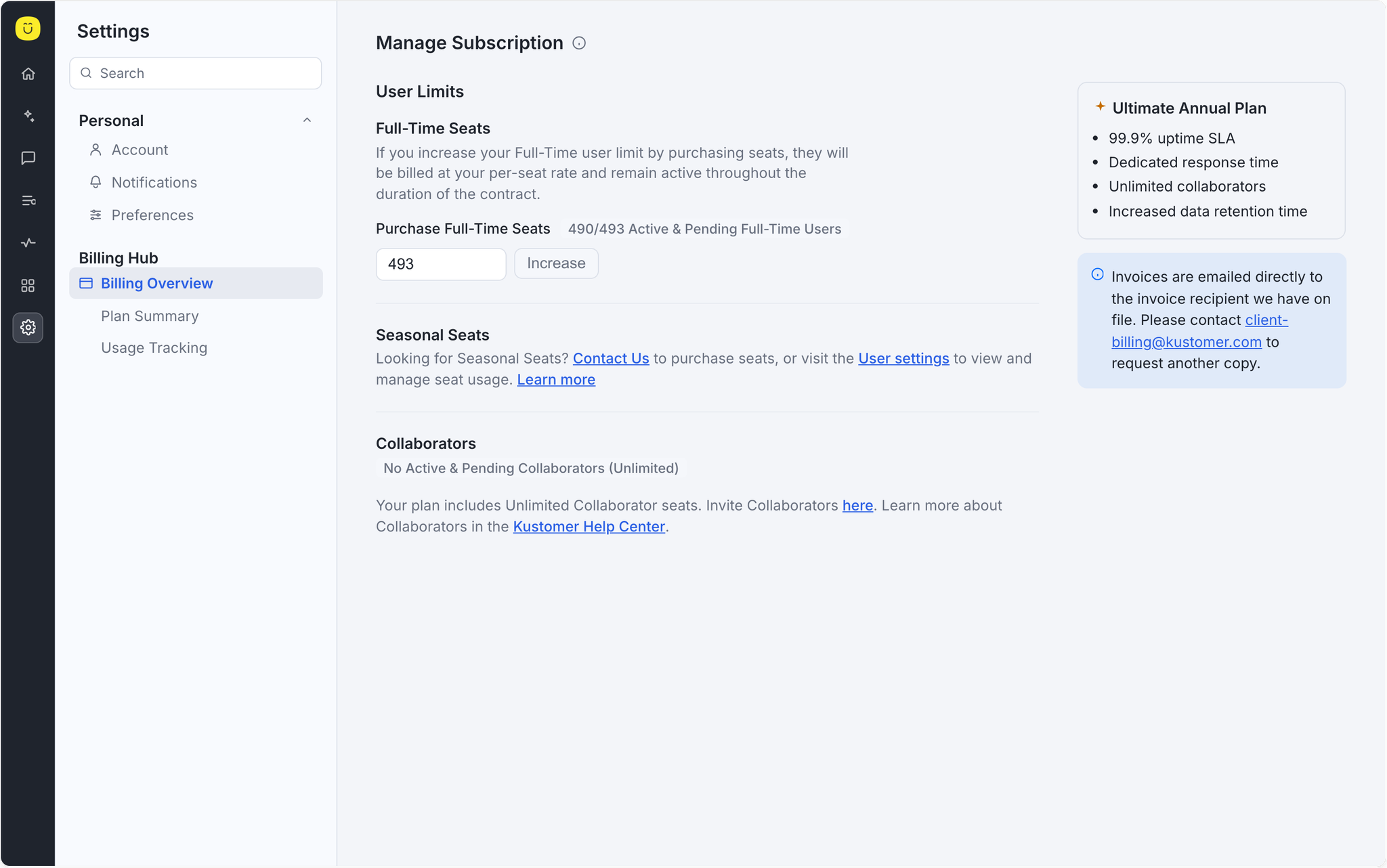
Billing Hub now gives you three self-service pages — Billing Overview, Plan Summary, and Usage Tracking — covering every usage-based product you're billed for. Download detailed usage records for the current billing period without opening a support ticket.
Why it matters.
Billing questions shouldn't require a support ticket or a wait for your CSM to get back to you. Not knowing what you're being charged for, or how usage is trending, makes it harder to plan and budget with confidence. Learn more —>
How to use it.
Org owners and admins with billing permissions can visit Billing Hub anytime: Billing Overview for upcoming and recurring charges, Plan Summary for your contract's allocations and allotments, and Usage Tracking to download a CSV of your actual usage for the period so you can check it against your plan.