Reporting & Analytics

Every metric. Every pattern. Every next step. Instantly clear.

Turn reporting into a conversation, not a chore. See what’s happening, why it’s happening, and what to do next, no exports or analysts required.

Schedule Demo

AI that turns CX data into direction

Kustomer combines your reporting with AI to summarize what’s happening, call out anomalies, and recommend next steps for staffing, coaching, and process.
Schedule Demo
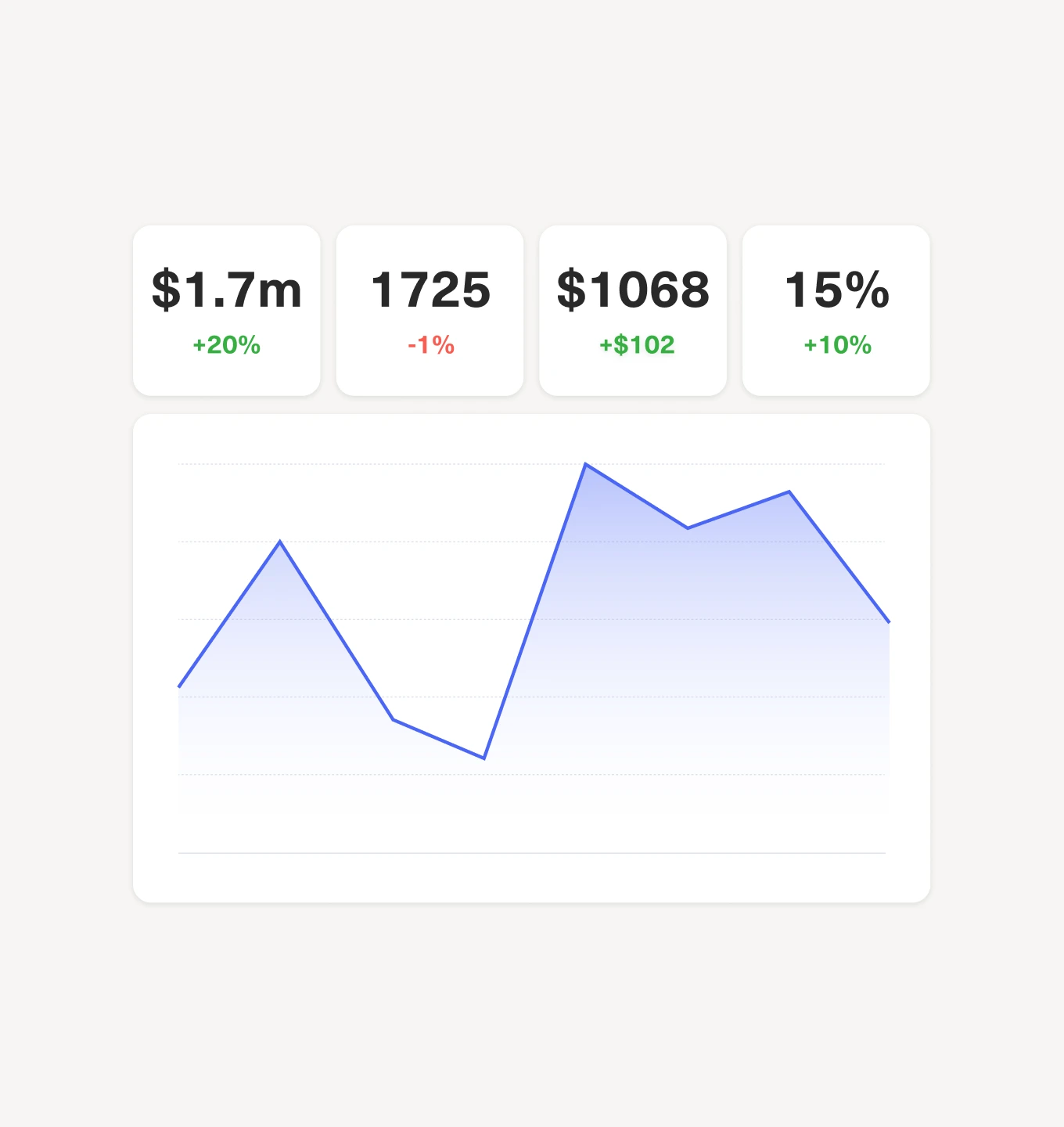
A line graph with four data points above it: $1.7m (+20%), 1725 (-1%), $1068 (+$102), and 15% (+10%). The graph below shows fluctuating values over time.

Turn scattered metrics into a clear performance story

Bring queues, channels, and team metrics into one view so you can quickly see how your CX operation is performing, spot what’s driving changes, and share a story your leadership can trust.
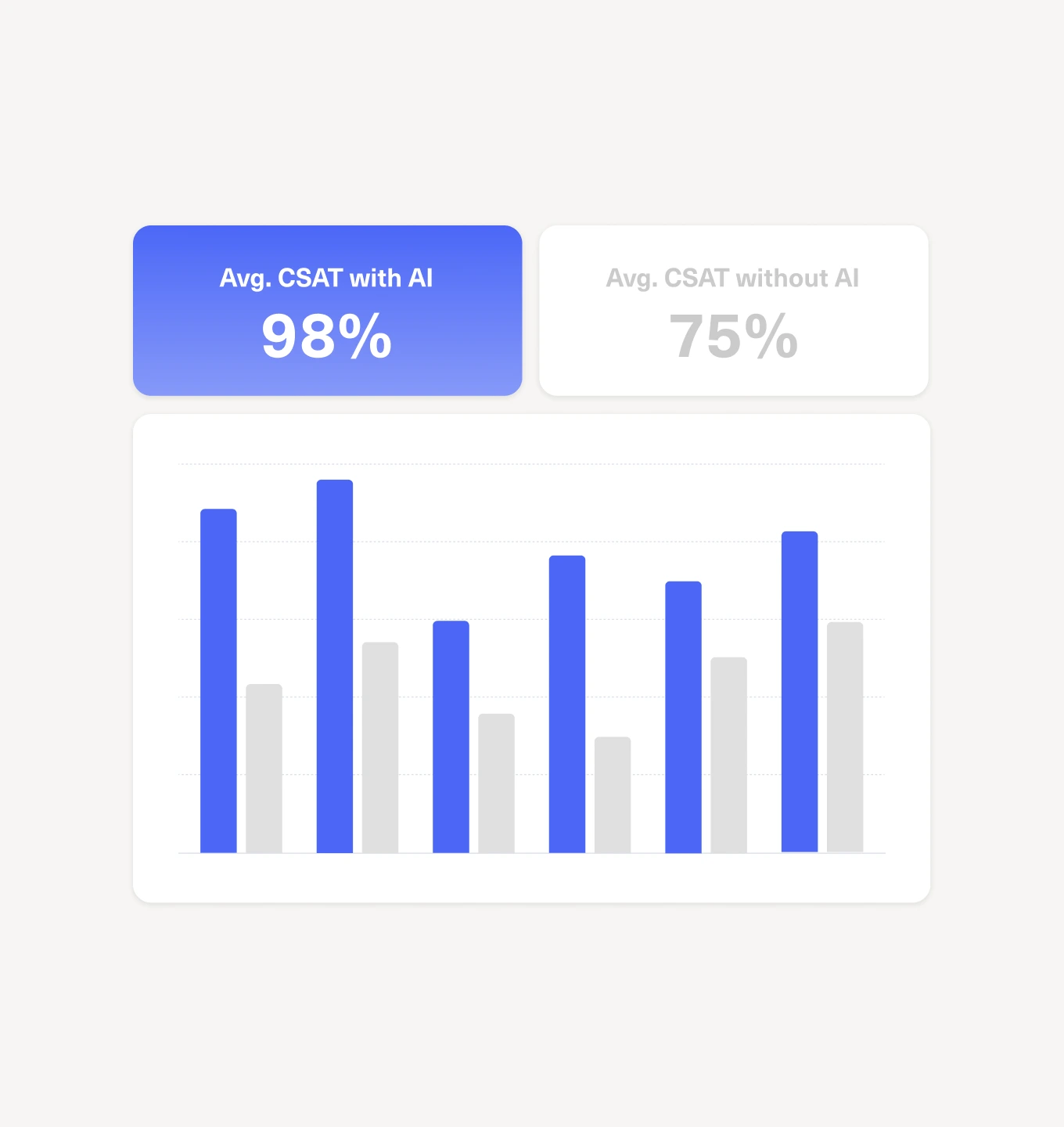
Bar chart comparing average CSAT with AI (98%) in blue bars and without AI (75%) in gray bars, showing consistently higher scores with AI. The with AI section is highlighted in blue.

Monitor and optimize AI for both CSAT and efficiency

Track how AI is handling conversations, deflecting volume, and impacting resolution times and CSAT, so you can fine-tune where AI steps in, where humans should lead, and how to get the best blend of cost and experience.
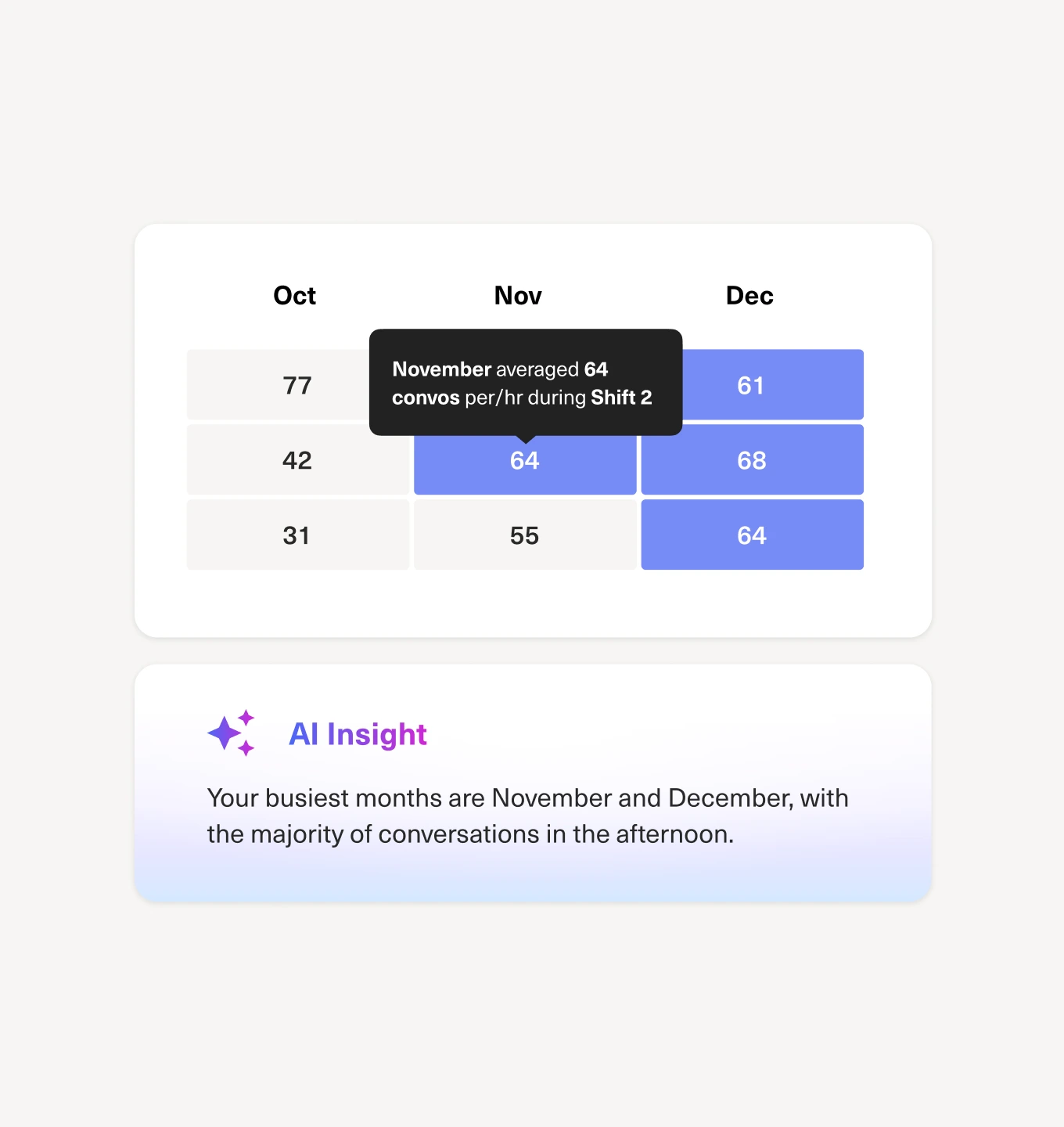
A table shows average conversations per hour for October, November, and December by shift, highlighting November Shift 2 with 64. Below, a note says November and December are the busiest months, mainly in the afternoon.

Turn insights into staffing, coaching, and process decisions

Go beyond “what happened” to understand which teams are struggling, where backlogs form, and which workflows need attention, then use those insights to adjust schedules, refine routing, and coach agents with confidence.

Schedule Demo
Two young adults, a man and a woman, smile and work together at a laptop in a classroom setting. A person stands in the background holding papers near a whiteboard.

“The new Data Explore feature in Kustomer has quickly become one of my favorite tools. It gives me the ability to deep-dive into any metric I need, which has made my analysis faster, more accurate, and far more actionable.”

Marissa Sherwood

Senior Manager of Customer Experience

A woman with long blonde hair is smiling at the camera. She is wearing a dark top, and the background is plain white.

Clarity in the data, confidence in the boardroom

Schedule Demo

Real-time visibility
into every team

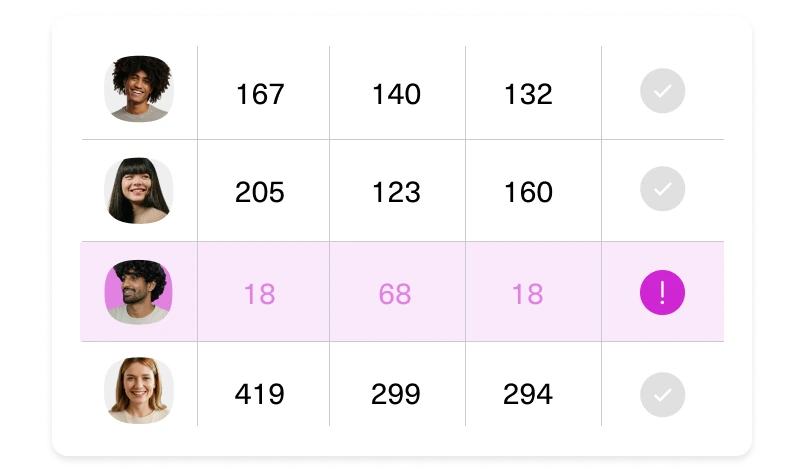
A table with four rows showing headshots, three columns of numbers, and a final column with check or exclamation marks. One row is highlighted in pink with low numbers and an exclamation mark.

Build the exact reports
your leaders want
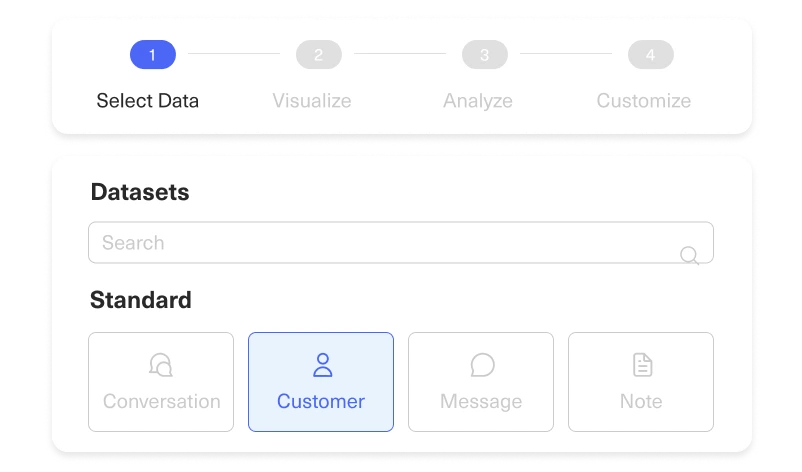
A user interface screen shows a four-step progress bar with Select Data highlighted. Below, a search bar and four dataset options appear, with Customer selected and others—Conversation, Message, and Note—grayed out.

Instant visibility into
SLA performance
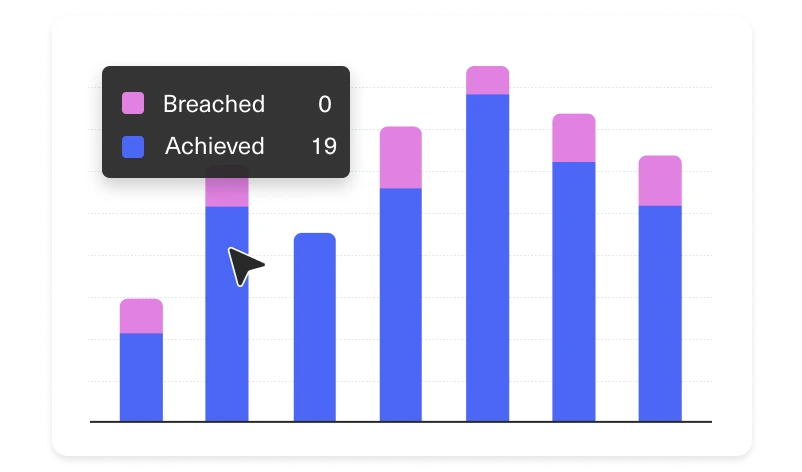
A bar chart with blue and pink stacked bars. A cursor points to a bar with a tooltip showing Breached: 0 in pink and Achieved: 19 in blue. Most bars are mainly blue with small or no pink sections.

See how customers really feel,
in real time
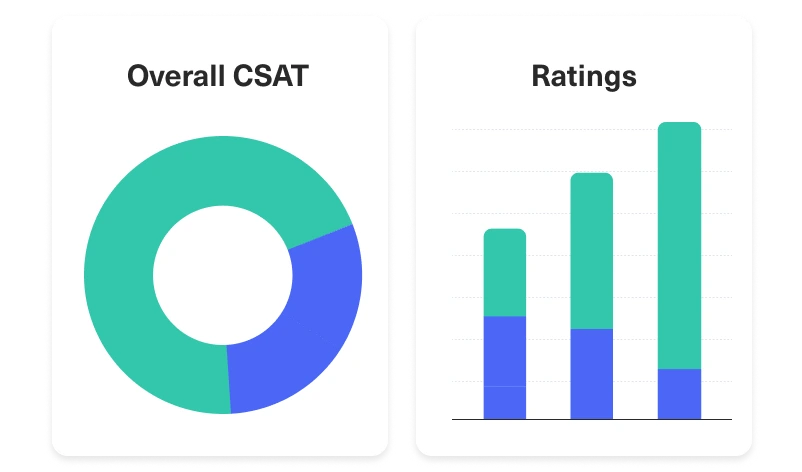
A dashboard with two charts: a donut chart labeled Overall CSAT showing mostly green with a small blue section, and a vertical bar chart labeled Ratings with four bars, each divided into blue and green segments, increasing in height.

Questions in, explanations and
next steps out
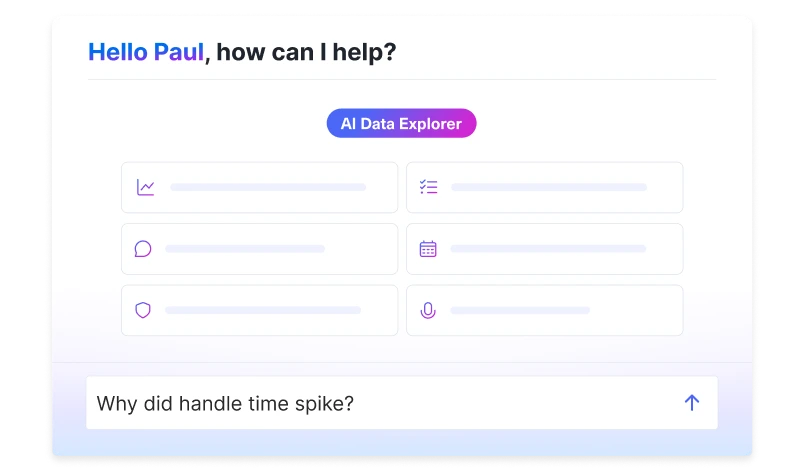
A digital interface greets a user named Paul, showing an AI Data Explorer button and six icons for different features. A search bar at the bottom contains the question, Why did handle time spike?.

Out-of-the-box dashboards
for everyday answers
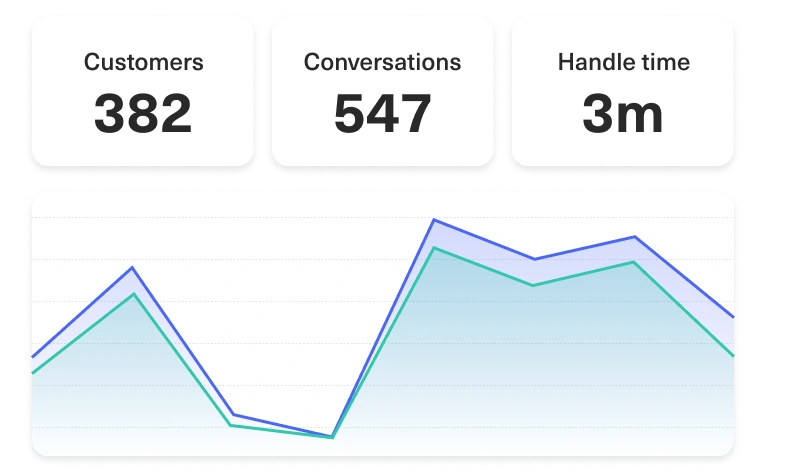
Dashboard showing 382 customers, 547 conversations, and a 3-minute handle time. Below, a line graph displays data trends with two colored lines over a shaded background.

Clarity in the data, confidence in the boardroom

Request Demo

Real-time visibility into every team

A table with four rows showing headshots, three columns of numbers, and a final column with check or exclamation marks. One row is highlighted in pink with low numbers and an exclamation mark.

Build the exact reports your leaders want

A user interface screen shows a four-step progress bar with Select Data highlighted. Below, a search bar and four dataset options appear, with Customer selected and others—Conversation, Message, and Note—grayed out.

Instant visibility into SLA performance

A bar chart with blue and pink stacked bars. A cursor points to a bar with a tooltip showing Breached: 0 in pink and Achieved: 19 in blue. Most bars are mainly blue with small or no pink sections.

See how customers really feel, in real time

A dashboard with two charts: a donut chart labeled Overall CSAT showing mostly green with a small blue section, and a vertical bar chart labeled Ratings with four bars, each divided into blue and green segments, increasing in height.

Questions in, explanations and next steps out

A digital interface greets a user named Paul, showing an AI Data Explorer button and six icons for different features. A search bar at the bottom contains the question, Why did handle time spike?.

Out-of-the-box dashboards for everyday answers

Dashboard showing 382 customers, 547 conversations, and a 3-minute handle time. Below, a line graph displays data trends with two colored lines over a shaded background.
Data that lets you lead, not guess
With trusted data, clear visuals, and explanations behind every trend, Kustomer helps CX leaders steer the operation, justify investments, and highlight wins.
Trusted by CX leaders across multiple industries

Lead your team with
clearer data

Let us show you how Kustomer reporting can help your team.
Schedule Demo
linkedin facebook pinterest youtube rss twitter instagram facebook-blank rss-blank linkedin-blank pinterest youtube twitter instagram